
Android: GALAPAGOS 005SHの機能制限解除

· 2 min read

Yu Sasaki
Enterprise Security Manager / Advisor

一ヶ月半ほど前に自身の携帯電話を表題の005SHからiphone4Sへ機種変更した。PCもMac book air なので、この際携帯もiCloudで連携できるiphoneへ合わせようと考えた次第。 機種変自体はつつがなく終わったが、引き続き005SHはおサイフケータイ機能端末として使用し続けた。 主な使用サービス:楽天Edy, WAON, ビックカメラポイントカード、ヨドバシカメラポイントカード、モバイルPonta 特にJALカードユーザーとしてはモバイルWAON機能は引き続き使用していきたい。 そんなこんなで、最近までは家のwifiでチャージ➡使用していたのだが、一ヶ月半すると圏外期間が長かった為、携帯画面がロックされてしまった。下記のサイトにて機能制限解除サービスがあった為、早速shopで依頼したところ、店員さんが初作業ということで40分ぐらい掛かった。 「機能制限解除」とは何ですか? | ソフトバンクモバイル

Softbank店員さん作業概要

  1. 携帯の本体(電池ボックス)に印字されているバーコードを読み取り、対応するQRコードをシステムより出力・印字
  2. 店内のデモ用の3G通信可能なSIMカードを挿入して当該のQRコードを読み込み、対象URLへアクセス
  3. アクセスすることで何らかの仕組みが働き、機能制限が解除されたもよう
  4. 最終的に自分のSIM(既に機種変更済みで使えない)を入れ直して、再起動。正常に端末が操作できることを確認

一応マツキヨで楽天Edyで買い物をしたが、正常に会計をできたので一安心。 今回はSIMロックなるキャリア-端末間の制限をかけている日本の携帯事情ならではの作業。欲を言えば005SHは一括で購入していたので、最初から制限解除しておいてほしかった。まあ、今後はiphoneのNFC採用や各社の対応を気長に待ちたい(数年かかると思われるが)

Python: Beautiful Soupのインストール - Mac OS編

· 2 min read
Yu Sasaki
Enterprise Security Manager / Advisor

インストール方法自体は配布元に記載の方法で実施。

参考サイト

  1. Beautiful Soup: We called him Tortoise because he taught us.
  2. Beautiful Soup Documentation — Beautiful Soup 4.0.0 documentation

The current release is Beautiful Soup 4.1.3 (August 20, 2012). You can install it with pip install beautifulsoup4 or easy_install beautifulsoup4. It's also available as the python-beautifulsoup4 package in recent versions of Debian and Ubuntu.

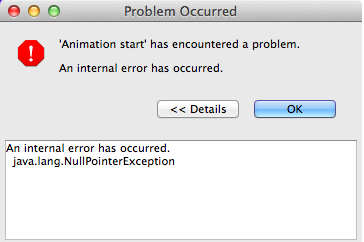
Eclipse: 'Animation start' has encountered a problemの対処例

· One min read
Yu Sasaki
Enterprise Security Manager / Advisor

eclipse_animation_start (Mac OS) 表題のエラーはMac OS+Eclipse(PDT)+PHP環境で発生。結論から言うと、対処法としては参考サイトに記載のフォーラム内容を参考に以下の手順で解消。

対処法

下記の設定ファイル中の、

/Applications/eclipse-php/eclipse-php.app/Contents/MacOS/eclipse-php.ini

以下の行を削除。

-Xdock:icon=../Resources/
mac.icns

もしくは適当なアイコンファイルパスを指定する。

参考サイト

  1. Eclipse Community Forums: PDT » 'Animation Start' has encountered a problem (on launch)
  2. Eclipse for php on Mac OSX 10.5: "Animation Start" error - Stack Overflow

Debian: パッケージのダウンロード元指定(DVD->Web) - sources.list

· 2 min read
Yu Sasaki
Enterprise Security Manager / Advisor

先日(といってもずいぶん前だが)VMwareからインストールしたDebianでapt-getによるVimパッケージのインストールを試みたところ、DVDの挿入を促すメッセージが出力された。

root@debian:~# apt-get install vim
Reading package lists... Done
Building dependency tree
Reading state information... Done
The following extra packages will be installed:
vim-runtime
Suggested packages:
ctags vim-doc vim-scripts
The following NEW packages will be installed:
vim vim-runtime
0 upgraded, 2 newly installed, 0 to remove and 0 not upgraded.
Need to get 0 B/7,122 kB of archives.
After this operation, 27.8 MB of additional disk space will be used.
Do you want to continue [Y/n]? Y
Media change: please insert the disc labeled
'Debian GNU/Linux 6.0.5 _Squeeze_ - Official amd64 DVD Binary-1 20120512-14:34'
in the drive '/media/cdrom/' and press enter

パッケージはWebからダウンロードする予定であった為、aptのダウンロード元設定ファイル(sources.list)を編集。

vi /etc/apt/sources.list

# ↓下記の行をコメントアウトすることで、CD, DVDへの読み込みを回避
# deb cdrom:[Debian GNU/Linux 6.0.5 _Squeeze_ - Official amd64 DVD Binary-1 20120512-14:34]/ squeeze contrib main
deb http://ftp.riken.jp/Linux/debian/debian/ squeeze main
deb-src http://ftp.riken.jp/Linux/debian/debian/ squeeze main
deb http://security.debian.org/ squeeze/updates main contrib
deb-src http://security.debian.org/ squeeze/updates main contrib
# squeeze-updates, previously known as 'volatile'
deb http://ftp.riken.jp/Linux/debian/debian/ squeeze-updates main contrib
deb-src http://ftp.riken.jp/Linux/debian/debian/ squeeze-updates main contrib

以上で次回以降のapt-getでは指定のURLからパッケージをダウンロードするようになる。

クライアント-サーバ間のFTPの接続構成図

· One min read
Yu Sasaki
Enterprise Security Manager / Advisor

FTP(File Transfer Protocol)はInternet Request for Comment(RFC) 959で定義されているファイル転送プロトコルであるが、この度、改めてFTPの仕組み、特にクライアント-サーバ間の接続方法を確認。 FTP connection between client and server 上図より接続のフローを簡単に説明すると、

  1. クライアント→サーバ(port 21)へTCPで制御用の接続を試みる
  2. サーバ→クライアントへTCPでデータ伝送用の接続を試みる
  3. 両コネクションにてコマンドのやり取り+データの伝送を行う

FTPにはActive/Passiveの2つのモードがあるが、両モードの違いはサーバ→クライアントへの接続に使用するサーバ側の送信ポートの違いである。図の通り、Activeモードはport 20番、Passiveモードは1024以上のport番号からランダムに選択したものを使用する。

Python: UDP/IPv4 Socket Server/Client (1 Client接続のみ)

· 2 min read
Yu Sasaki
Enterprise Security Manager / Advisor

先日はTCPでのデータ送受だったので、今回はUDPプロトコルを用いた確認をする。

ソースコード(for Python 2.7)

補足はソースコード中のコメントを参照。サンプルの為、サーバ・クライアントは同一マシン上での実行を想定。 tsUdpServ.py

# coding: utf-8
from socket import *
from time import ctime
HOST = gethostname()
PORT = 34512
BUFSIZE = 1024
ADDR = (gethostbyname(HOST), PORT)
USER = 'Server'
udpServSock = socket(AF_INET, SOCK_DGRAM) # IPv4/UDPでソケット作成
udpServSock.bind(ADDR) # HOST, PORTでbinding
while True:
print 'Waiting for message...'
data, addr = udpServSock.recvfrom(BUFSIZE) # データ受信
print '...received from and returned to:', addr
udpServSock.sendto('%s > [%s] %s' % (USER, ctime(), data), addr) # データ送信
udpServSock.close()

TCPと大きく変わるところは、ソケットの作成時にソケットファミリーをSOCK_DGRAMとすること。また、listen()とaccept()メソッドが不要となったところあたりかな。 tsUdpClnt.py

# coding: utf-8
from socket import *
HOST = gethostname()
PORT = 34512
BUFSIZE = 1024
ADDR = (gethostbyname(HOST), PORT)
USER = 'Client'
udpClntSock = socket(AF_INET, SOCK_DGRAM)
while True:
data = raw_input('%s > ' % USER) # 標準入力からのデータ入力
if not data:
break
udpClntSock.sendto(data, ADDR) # データ送信
data, ADDR = udpClntSock.recvfrom(BUFSIZE) # データ受信
if not data:
break
print data # データ出力
udpClntSock.close()

Python: TCP/IPv4 Socket Server/Client (1 Client接続のみ)

· 2 min read
Yu Sasaki
Enterprise Security Manager / Advisor

PythonでSocketサーバ、クライアントの接続方法を下記のソースコードを用いて確認。C言語のどう程度のサンプルと比較すると行数が少なく、書きやすい。これがThreadやノンブロッキング・多重化を用いた時にどの程度膨らむかは今後確認予定。

ソースコード(for Python 2.7)

補足はソースコード中のコメントを参照。サンプルの為、サーバ・クライアントは同一マシン上での実行を想定。 tsTcpServ.py

# coding: utf-8
from socket import *
from time import ctime
HOST = gethostname()
PORT = 34567
BUFSIZE = 1024
ADDR = (gethostbyname(HOST), PORT)
USER = 'Server'
tcpSerSock = socket(AF_INET, SOCK_STREAM) # IPv4/TCPソケットとして作成
tcpSerSock.bind(ADDR) # アドレス、ポートのbinding
tcpSerSock.listen(5) # サーバソケットの最大接続要求の順番待ち数
while True:
print 'Waiting for connection...'
(tcpCliSock, addr) = tcpSerSock.accept() # 接続待受開始
print '...connected from.' , addr
while True:
data = tcpCliSock.recv(BUFSIZE) # C->Sデータの受信
if not data:
break
tcpCliSock.send('%s > [%s] %s' % (USER, ctime(), data)) # S->Cデータの送信
tcpCliSock.close() # Clientソケットのclose
tcpSerSock.close() # Serverソケットのclose (到達不能コード)

tsTcpclnt.py

# coding: utf-8
from socket import *
HOST = gethostname()
PORT = 34567
BUFSIZE = 1024
ADDR = (gethostbyname(HOST), PORT)
USER = 'Client'
tcpClntSock = socket(AF_INET, SOCK_STREAM)
tcpClntSock.connect(ADDR)
while True:
data = raw_input('%s > ' % USER) # 標準入力からのデータ入力
if not data:
break
tcpClntSock.send(data) # C->Sへデータ送信
data = tcpClntSock.recv(BUFSIZE) # S->Cのデータ受信
if not data:
break
print data
tcpClntSock.close()

Recognize the purpose of the meeting

· One min read
Yu Sasaki
Enterprise Security Manager / Advisor

I didn't go off the track from the main theme of meeting. The aims of the meeting are the following points: 1) Share the acknowledging and knowledge. 2) Come to a conclusion or next action plan after discussion. Especially, 2) is important for me because 4 days ago, I failed moderate the meeting and uphold the above point of view. From now, I will pay attention to moderating the meeting.

I'll continue to write the technical blog

· One min read
Yu Sasaki
Enterprise Security Manager / Advisor

When I was a university student, I wrote the technical blog in this site to improve my skill and further my studies in programming, network, software design but recently, I can't write it constantly because I'm busy with work. Writing blog to study is effective for studying because you need certain stills to write a blog such as: 1. Gathering knowledge about a theme 2. Logical thinking and writing Now that I work for a system engineer in a bank and need to learn new skill, it is hard to take the free time after work. So I usually write articles in advance on Saturday or Sunday for three or four days as a buffer.